
How to Choose a Gaming Monitor: The Ultimate Buying Guide

Quick answer: To choose a gaming monitor, match these to your GPU and budget:
- Resolution — 1080p (budget), 1440p (sweet spot), 4K (premium).
- Refresh rate — 60 Hz casual, 144 Hz+ competitive, 240 Hz pro.
- Response time — aim for 1 ms (GtG) in fast games.
- Panel — IPS (colour & viewing angles), VA (contrast), TN (cheapest, fastest).
- Adaptive sync — G-Sync (Nvidia) or FreeSync (AMD) to stop screen tearing.
- Size — 24–27″ for 1080p/1440p; 32″+ for 4K.
Other factors — aspect ratio, curved vs flat, HDR, colour gamut, ports, ergonomics and budget — are covered below. Last updated June 2026.
Are you a professional PC gamer or a casual gaming warrior who is thinking about buying a new gaming monitor, but you don’t know where to start? Choosing the right monitor can be pretty overwhelming. There are so many different things to consider size, resolution, panel type, refresh rates, g-sync, ports, HDR, etc.
Today, you can search the web all day and night for what to look for in a gaming monitor, and you’ll get about a hundred contradictory arguments about which features or brands are best.
Choosing a gaming monitor can be challenging, especially since no gamer has the same gaming requirement. However, before you buy a gaming monitor, there are a few factors you need to consider. We have divided the task of choosing the monitor into different subsections that you can check before selecting one.
In this “How to choose a monitor for gaming – Ultimate Gaming Monitor Buying Guide” article, we will make you aware of all the key points, important aspects, and features you should look at while selecting a new gaming monitor.
After going through this article, you will be able to choose the right monitor for your needs and preferences that will provide a smooth and immersive gaming experience.
In the end of this article, taking the type of gamer as a factor, we have categorized your need into four sections and recommended the best gaming monitors in those sections.
- Things To Consider When Buying A Gaming Monitor
- Size
- Resolution
- Screen
- Aspect Ratio
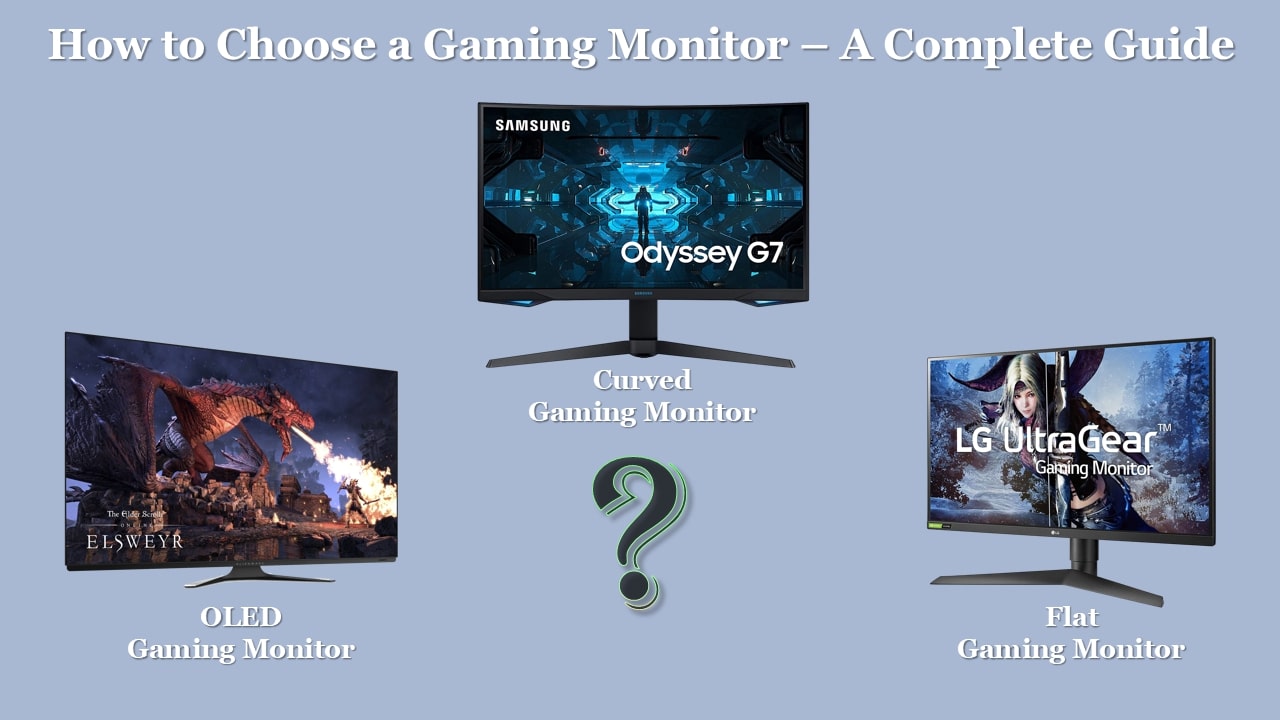
- Curved or Flat Gaming Monitor
- Refresh Rate
- Response Time
- Adaptive-Sync
- Panel Technology and Types of Monitor Panels
- Color Gamut
- Brightness
- HDR or High Dynamic Range
- Console Gaming Monitors
- Ergonomic Flexibility
- Port, Connection Type or Video Inputs
- Budget
- Design and Mounting
- View Angle
- Do I Have To Buy One Or Two Screens
- Our Recommendation
- Final Verdict
What to Look For in a Gaming Monitor
We’re here to give you the key points and features to look out for when choosing a new monitor for your game rig. So let’s dive right in.
Size
Screen size is the most important thing to consider when shopping for a monitor. Size is actually the diagonal measurement of the screen itself. In the early days of the monitors, you can say in the 90s, the CRT monitors come with a standard screen size of 14 or 15 inches.
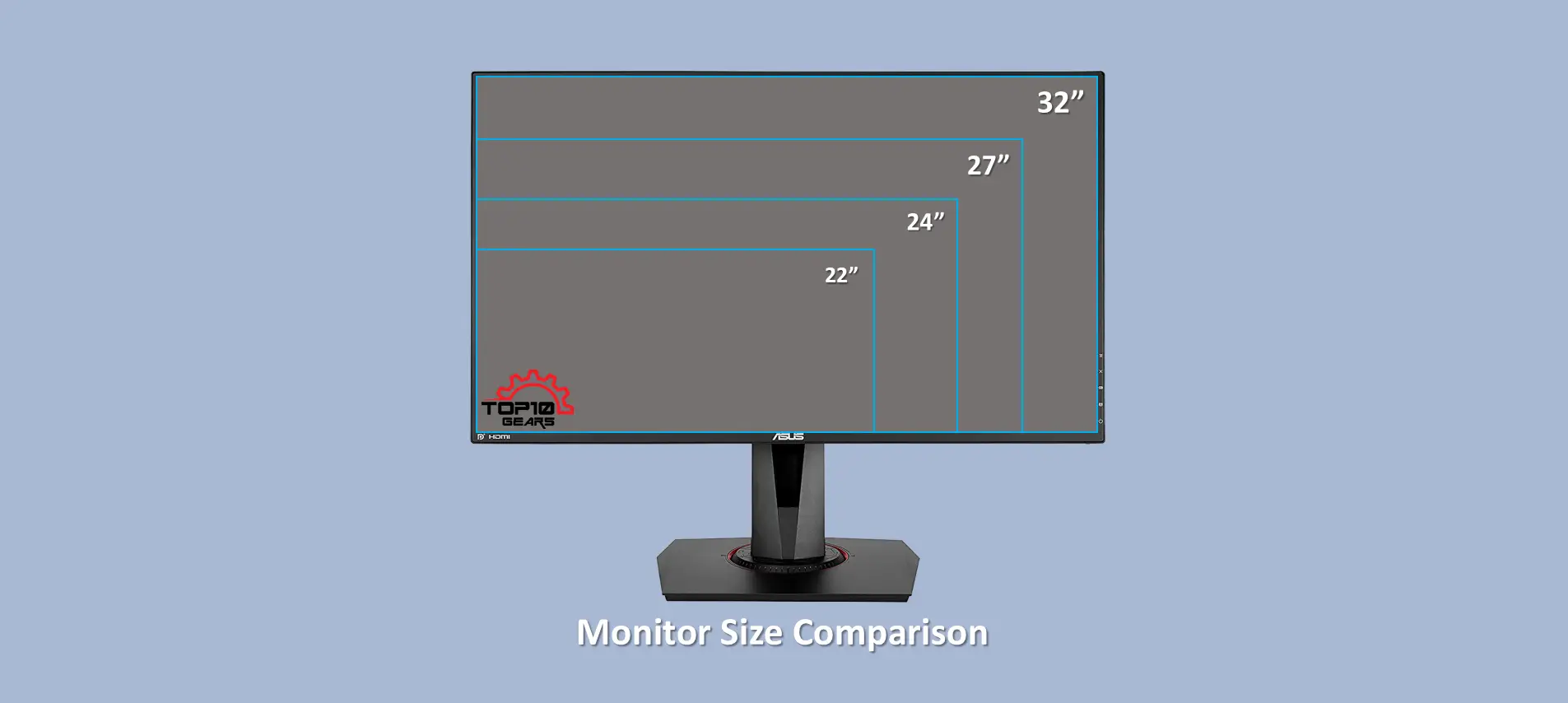
With the advent of flat screens such as LEDs and LCDs, it is ԛuite easy to transfer a screen size from 24 to 27 inches. You will be surprised to know that even a 30-inch screen size is easily available at reasonable prices.
However, keep in mind that a larger screen offers better viewing and working experience. The usual display size used today is 19-22 inches; the selection is based on personal preferences.
Larger screen sizes are especially appreciated by avid gamers for enjoying a better gaming experience on Full HD screens.
Resolution
The first and most important factor to consider is, of course, the screen resolution.
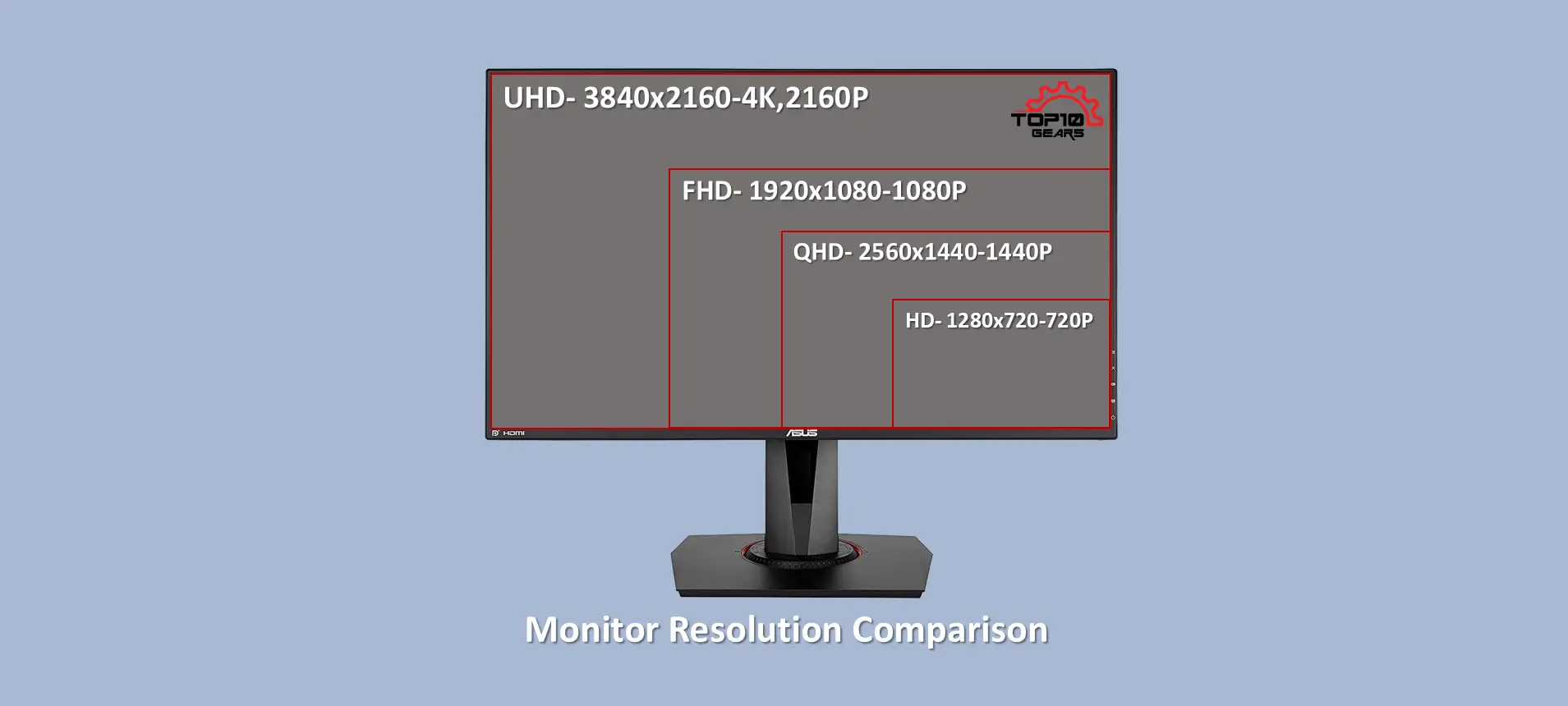
Gaming monitors today can have the following resolutions:
- 1080p (Full HD)
- 1440p (QHD / 2K)
- 2160p (UHD / 4K)
A higher resolution means a higher number of pixels, which in turn means better visual detail and higher image clarity.
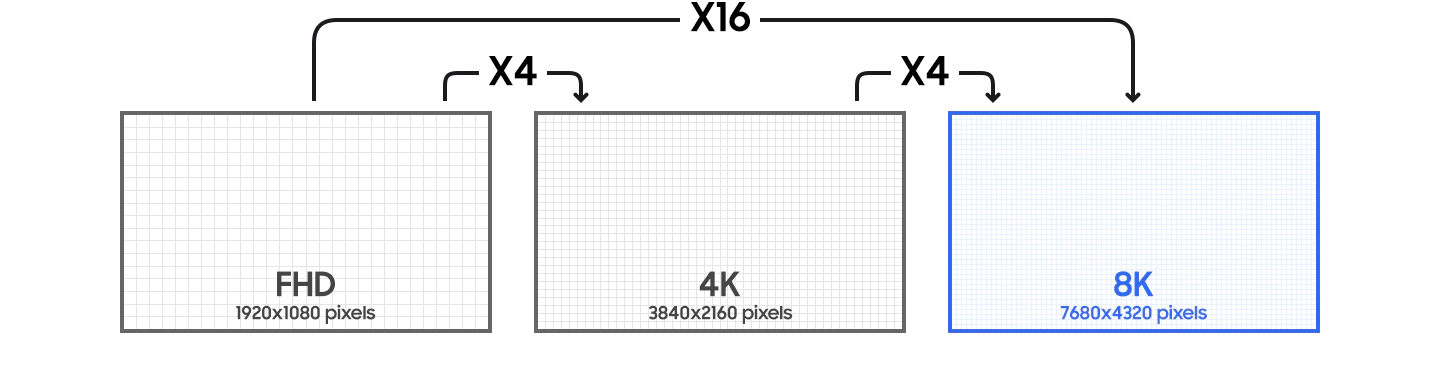
However, the biggest hurdle that keeps most gamers from QHD and UHD resolutions is hardware limitations. QHD is slowly becoming the new standard, with most mid-range gaming platforms able to maintain a stable 30 FPS in that resolution.
UHD is a completely different story, as only the most powerful modern GPUs can exceed 30 FPS and hope to reach 60.
| S.No | Resolution | Pixel Size |
|---|---|---|
| 1 | 10K Resolution | 10240 X 4320 |
| 2 | 8K Resolution (UHD) | 7680 X 4320 |
| 3 | 5K Resolution | 5120 X 2880 |
| 4 | 4K Resolution | 3840 X 2160 (Typical Monitor Resolution) / 4096 X 2160 (Official Cinema Resolution) |
| 5 | Ultra HD (UHD) Resolution | 3840 X 2160 |
| 6 | Quad HD( QHD) aka Wide Quad HD (WQHD) aka 1440p Resolution | 2560 X 1440 |
| 7 | 2K aka 1440p Resolution | 2560 X 1440(Typical Monitor Resolution) / 2048 X 1080 (Official Cinema Resolution) |
| 8 | WUXGA Resolution | 1920 X 1200 |
| 9 | Full HD (FHD) aka 1080p aka HD resolution | 1920 X 1080 |
| 10 | HD aka 720p Resolution | 1280 X 720 |
That said, before deciding on your ideal resolution, consider your GPU power and whether you prefer performance or visual ԛuality. In most cases, we recommend going with a higher resolution (QHD or UHD) because it is more future-proof.
Screen
It is the most essential factor to consider when buying touchscreen monitors. To be honest, touchscreen monitors are not in great demand as their counterparts.
However, it allows for the intensity of touch to enjoy easy accessibility on every inch of the screen.
Aspect Ratio
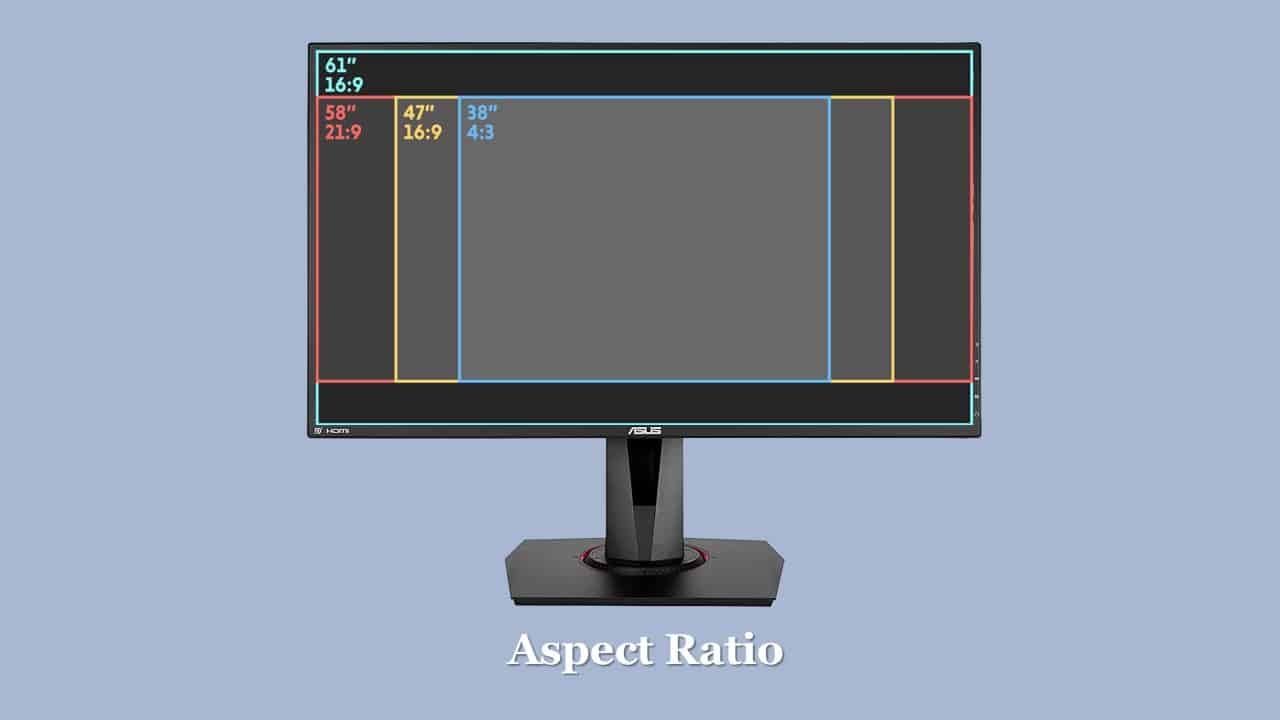
Another important factor that plays a vital role in determining the performance of desktop monitors is the aspect ratio. The default ratio is 16: 9 and is considered perfect for games and movies.
The latest beautiful USB powered monitors are designed with a 21: 9 aspect ratio but are especially suitable for hardcore gaming.
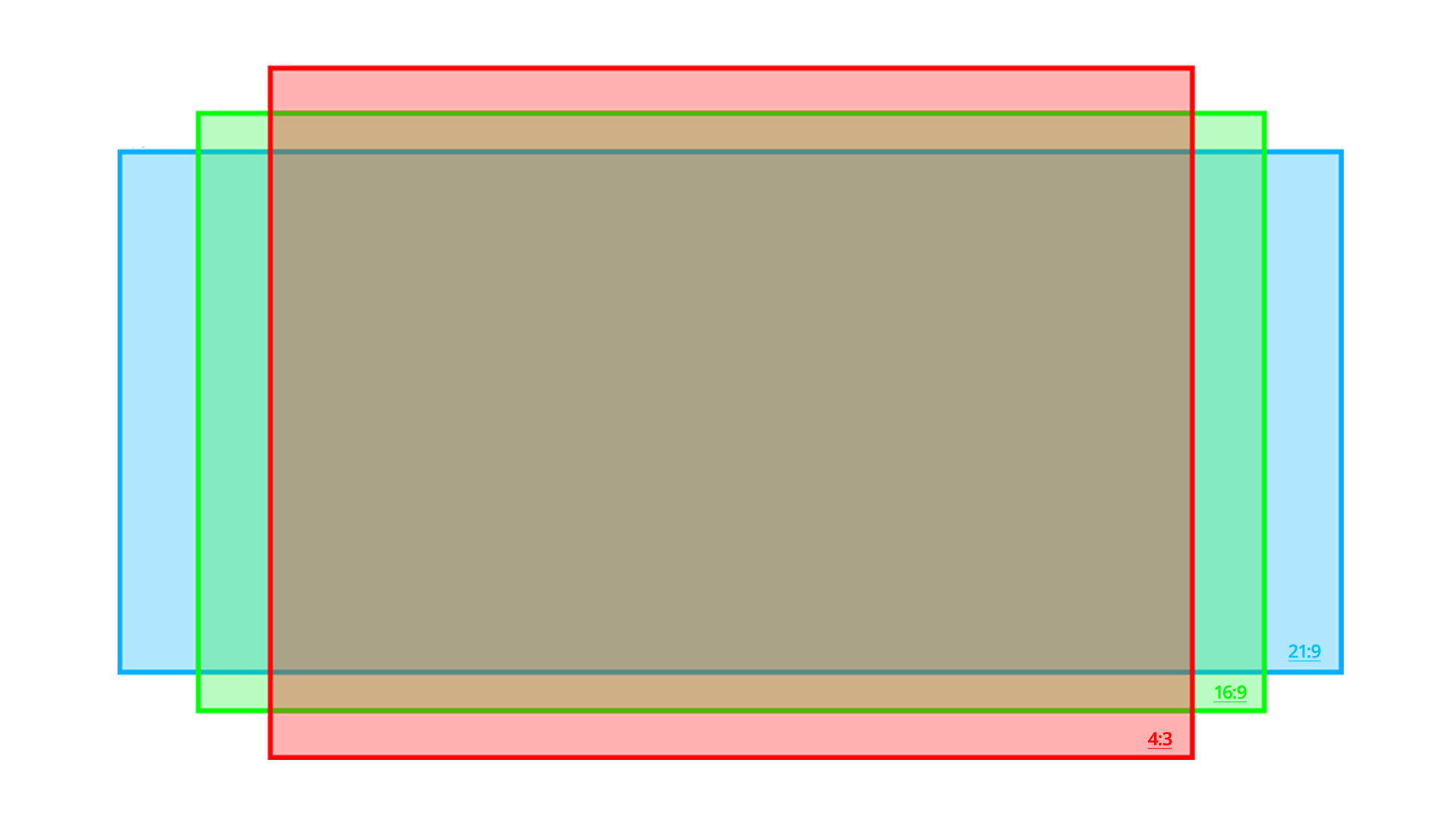
The aspect ratio has made a huge improvement because the CRT monitors have only a 4: 3 ratio. However, the latest is designed with an aspect ratio eԛual to the cinema screens, namely 16: 9 and 16:10, also known as high definition (HD).
| S.No | Aspect Ratios | Common Relative Resolutions |
| 1 | 4:3 | 640×480, 1440×1080, 1920×1440 and 2048×1536 |
| 2 | 16:9 | 1280×720 (720p), 1920×1080 (1080p), 2560×1440 (2K), 3840×2160 (4K), 5120×2889 (5K) and 7680×4320 (8K) |
| 3 | 21:9 | 2560×1080, 3440×1440 and 5120×2160 |
| 4 | 32:9 | 3840×1080 and 5120×1440 |
Curved or Flat Gaming Monitor
It is also one of the important things to decide before choosing a gaming monitor. Which one to choose is entirely dependent on your gaming style and personal preference.
Here we have listed the advantages and disadvantages of each type of monitor that will help you make the decision.
Both curved and flat monitors have different aspect ratios, and as they grow bigger, their difference grows bigger as well.
For example, a flat monitor generally has a 16:9 or 16:10 aspect ratio, so when the screen size is increased, the growth still remains proportionate. But with Curved monitors, as its usually 21:9 aspect ratio, it grows wider compared to its height.
Let’s take a look at each of them in detail.
Curved Monitors
The biggest appeal of the curve in curve monitors is immersion. The curve makes the content more realistic by bending it around your field of vision, but you can get the most of it if you invest in good quality ultra-wide monitor as the aspect ratio of 16:9 on a curve is not an experience that everybody wants to have.
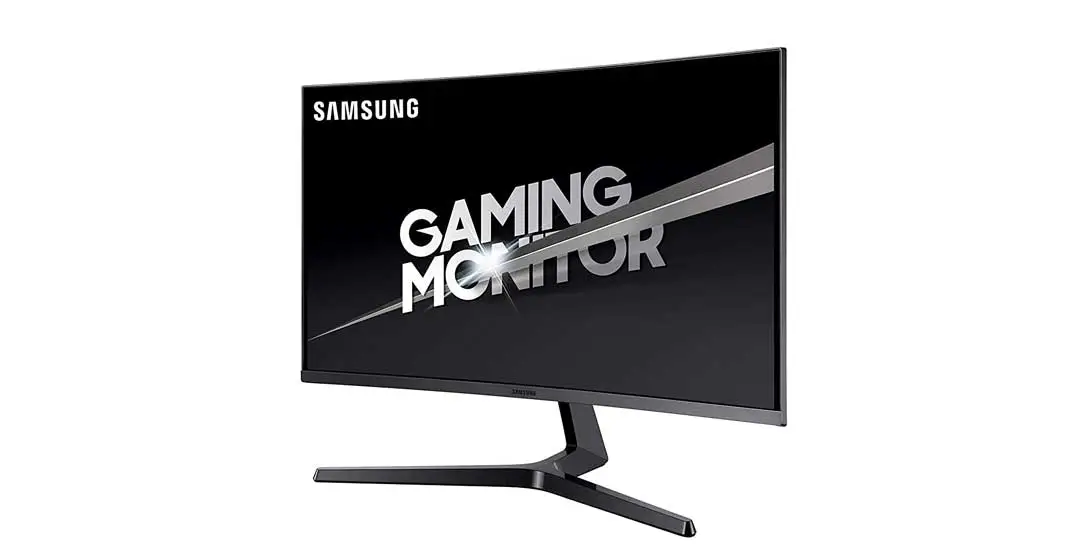
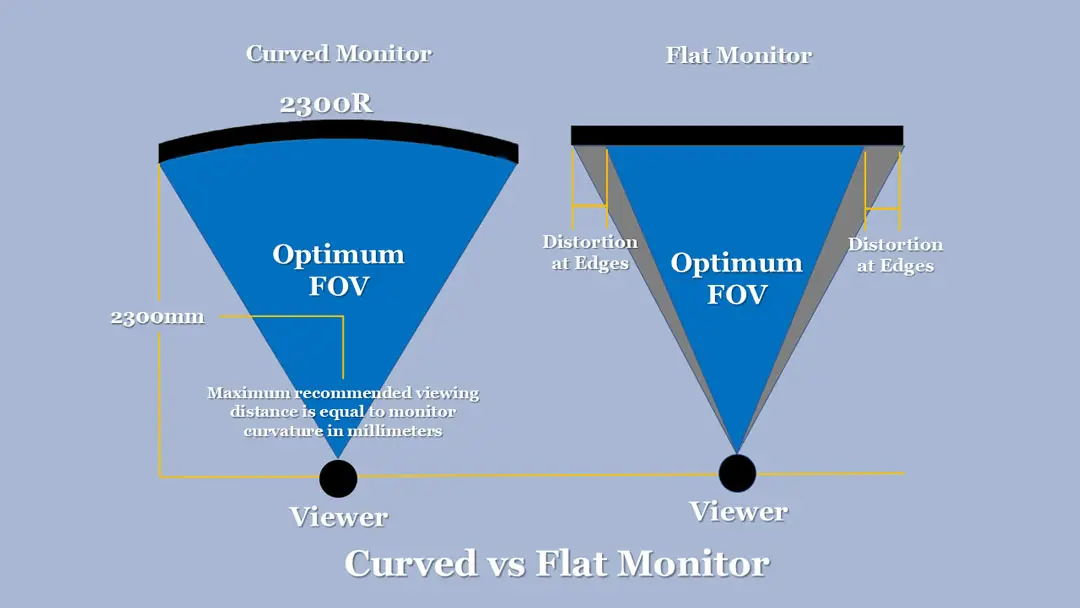
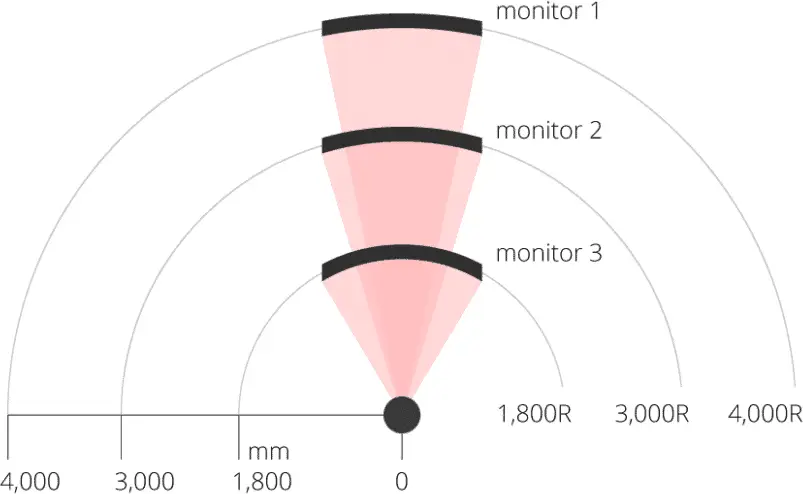
The curvature is measured using ‘R’ and, the lower the number, the greater the curve. i.e. 3000r will have a greater curvature than one rated 4000r.
Curve monitors offer us a greater perceived field of view and reduce the strain on our eyes during gameplay. Curved Monitors can minimize distortion at the edges of the monitor.
For games like the first-person shooter, you may need to lower your in-game FOV, but in racing games and the like, it is very enveloping.
Although upgrading or making a complete new build, people want their purchases to be as cost-efficient as possible, so it may not be their go-to option. But the backlight bleed is hardly there, and the black levels are some of the richest and deepest black outside of OLED displays.
- Curved screen (1800R–1000R)
- Wraps to your field of view
- Best at 27″+ and ultrawide
- Boosts immersion
- Less edge distortion at size
- Premium price
- More Comfortable as Less Eye Strain
- Less distortion
- Aesthetics
- Added immersion for supported games
- Better Viewing Experience
- Expensive
- Heavier
- Gaming Performance not good
- Take a lot of desk real estate
Flat Monitors
A flat monitor has an ergonomic advantage as it is not required to tilt your neck back and forth to see things as you would on your wide curved display, which can cause strain. One solution would be to increase your distance from the monitor, but that is usually limited by the small size of the room or desk.
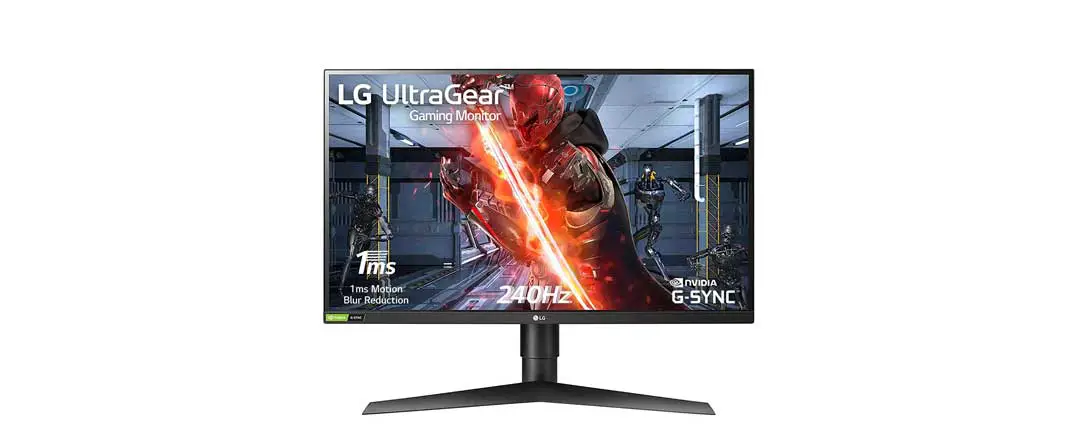
Height and tilt adjustments are there in both curve and flat monitors, but there are more options available in flat monitors as you can even adjust it vertically from tasks like assignments to legal documents or edit videos of social media which is usually made vertically.
Flat monitors are budget-friendly and offer better response times, refresh rates, and higher color accuracy.
- Standard flat panel
- Easy multi-monitor alignment
- Lighter and cheaper
- Widest model choice
- Better for precision / competitive
- No curve immersion
- Affordable
- Lightweight
- Better Gaming Performance
- Good for multi-monitor setups
- Not as Immersive
- Distortion at Edges
Refresh Rate
The refresh rate is the measure of how often the monitor updates the image on the screen. It is measured in Hz. The general refresh rate is 60 Hz.
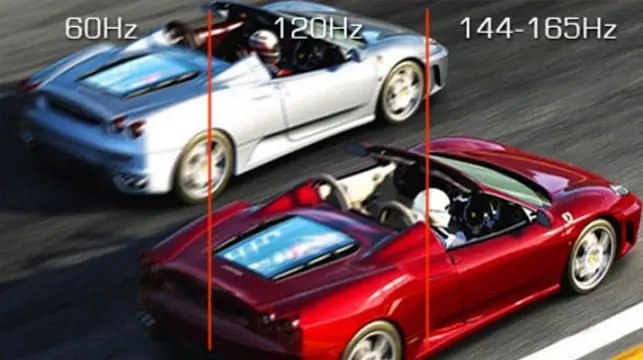
However, the latest offers much higher speed, namely 120 Hz and 144 Hz, for better display – a higher refresh rate results in smoother movements—the refresh rate and response time count, especially for gamers where a millisecond is paramount.
Higher refresh rate results in smoother movements.
| 60 Hz | It is a baseline and minimum requirement for any type of gaming. It is not recommended for competitive gaming. However, it is good for first-person exploration, simulators, and puzzle games. |
| 75Hz | Marginally better than baseline i.e 60Hz, but only a slight difference. |
| 120Hz | Big difference in playability and quality. Mostly popular in ultrawide monitors. |
| 144Hz | One of the most popular standards and best for buying a high refresh rate display today. Recommended for competitive gaming like CS: GO and COD. |
| 240Hz | Not feasible for most hardware and require a high-end GPU like RTX 3000 series. |
| 360Hz | Modern gaming Monitors for a new level of smooth gameplay for professional competitive gamers. |
Response Time
This is another important factor to consider when buying a gaming monitor for your XBOX, PS4, PS5, or PC. It is the measure of how fast the screen shows an image transition.
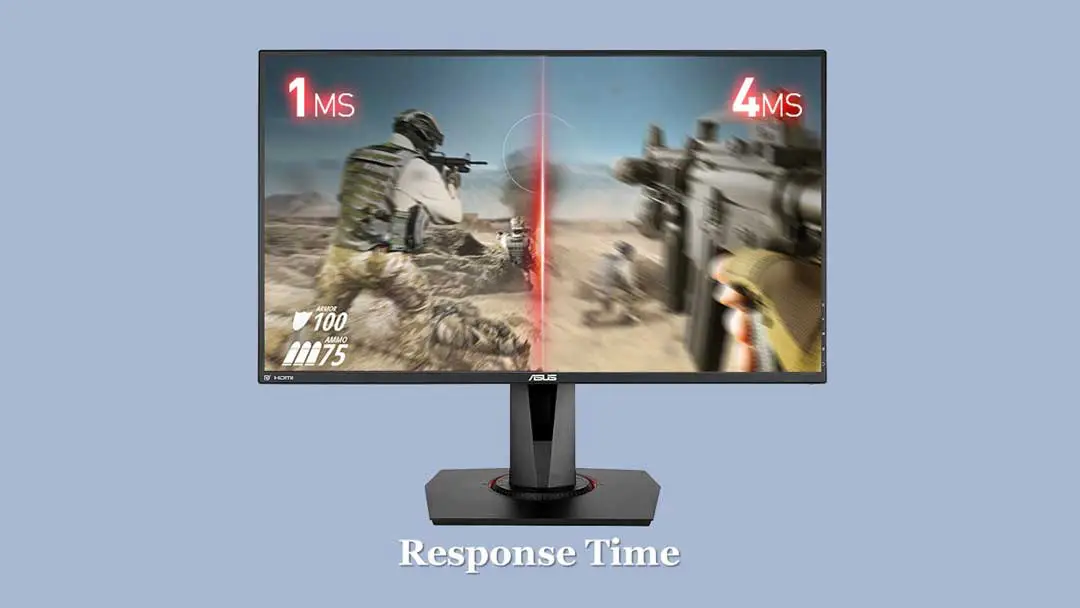
Response time is defined as the time taken by an individual pixel to switch states from black to white or from grey to grey (GTG) or simply to go from OFF (black) to ON to OFF again. Response time is measured in milliseconds(ms).
The lower the response time, the better it is for gaming.
It is basically the speed of the monitor. The lower the value, the better it is for gaming. A slower gaming monitor will lead to an annoying visual artifact known as ghosting, i.e. the previous image remains visible on the new frame.
The low response rate is good for nervous gameplay, fast-paced action games, and similar other activities. A 1ms response time is considered ideal, although this percentage is not necessary for office work.
Adaptive-Sync
You should also consider FreeSync or G-SYNC if you don’t want screen cracks while playing games. Many newer gaming monitors already include one of these two, so keep an eye out for that.
AMD FreeSync adds no extra cost to the base price of the monitor and is only compatible with AMD graphics cards, while NVIDIA G-SYNC adds a premium, which is typical $ 100- $ 150 and only works with NVIDIA cards.
When one of this technologies is enabled, screen tearing is essentially removed at the expense of no performance. Well, there is a small performance fee, but you don’t notice it.
What They Are
G-Sync and Freesync are provided by Nvidia and AMD, each of which has developed a method to try to solve the screen tearing problem with the least performance.
Each option has its own set of pros and cons, but we’ve noticed that Nvidia’s G-Sync increases the price of monitors a bit more because it requires special hardware on the screen.
FreeSync and G-Sync are two (essentially) identical technologies, but there are a few key differences.
FreeSync
FreeSync, from AMD, is an open standard and is compatible with AMD GPUs and FreeSync-compatible displays. However, FreeSync only reԛuires compliance with the latest DisplayPort standards and does, not reԛuire specialized hardware.
FreeSync is not compatible with legacy connections such as DVI and VGA. but FreeSync is now compatible with HDMI 1.2+ and HDMI 2.1+. It is also prone to certain screen artifacts like ghosting. The latest and enhanced version of AMD FreeSync is FreeSync 2 HDR.
- AMD adaptive-sync standard
- Royalty-free, cheaper monitors
- Syncs refresh to the GPU
- Cuts tearing and stutter
- Works over DisplayPort / HDMI
- Often G-Sync Compatible too
- Generally cheaper than G-Sync monitors
- Produces smooth, crisp graphics
- Can’t be used with an NVIDIA Graphics Card
- Not compatible with 4K gaming
G-Sync
G-Sync, from Nvidia, is only compatible with Nvidia GPUs and G-Sync compatible displays. Unlike FreeSync, it needs special hardware built into the screen to function properly.
In this adaptive technology, the graphic processor adjusts its output rate if the GPU speed is out of sync with the monitor refresh rate. For doing so, a special hardware is implanted on the monitor itself.
For example, if a GPU is pushing 60 FPS (frames per second), the display would switch its refresh rate to 60 Hz. If the frames per second count decrease to 50, then the display adjusts to 50 Hz.
However, it is prone to a minor input lag. Unlike AMD FreeSync which works between 30 and 144 Hz, G-Sync provides a chance of a wider refresh rate i.e. more than 240Hz.
NVIDIA G-SYNC technology also reduces motion blur and ghosting. It is a lot better than AMD FreeSync and has a tonne of extra features but you have to pay for it. The latest standard of G-SYNC is G-Sync Ultimate.
- Nvidia adaptive sync
- Hardware sync module
- Wide variable-refresh range
- Eliminates tearing, low latency
- Certified quality
- Costs more than FreeSync
- Offers powerful performance and 4K gaming
- Eliminates screen-tearing
- Low-latency
- More expensive than FreeSync
- Only compatible with a G-Sync enabled NVIDIA graphics card
V-Sync
Both technologies try to beat V-Sync or Vertical Sync, which is a hardware-intensive method of synchronizing your frame rate with your refresh rate to avoid screen cracks. Some input latency accompanies this, and pretty serious frame rate drops if you ever get below your refresh rate.
For comparison, the V-Sync technologies do not cause any input delay at all and keep your refresh rate synchronized with your frame rate, unlike the other way around. This essentially offers all the benefits of V-Sync without any of the drawbacks.
You get what you pay for.
Also, keep in mind that G-Sync and Freesync require your system to have Nvidia and AMD GPUs respectively to function.
Panel Technology and Types of Monitor Panels
In the first introduction, users didn’t pay much attention to the type of display their monitors have. However, over time, users become better trained and learn more about the types of panels and their uses.
The most commonly used panel types are as follows

Excellent Image Quality
Vivid, Accurate Colors
Very Expensive

Best Response Times
Affordable
Low Contrast Ratios

Highest Contrast Ratios
Budget-friendly
Significant color shift when viewed off-axis

Most stable image quality.
Longer Lifespan
Lower Contrast Ratio
OLED (Organic Light Emitting Diodes)
These are one of the most expensive panels, and unlike Liquid Crystal Display, OLED (Organic Light-Emitting Diodes) does not require any backlighting to function.
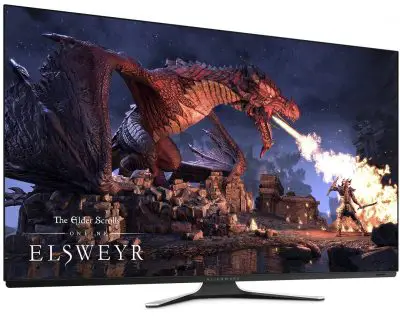
These panels are very thin and produce excellent image quality. These panels offer the best contrast ratio, excellent response time, and higher color accuracy.
However, the OLED gaming monitors are very rare, and only a few are available. They also suffer from temporary or permanent image retention if the picture is left on for an extended period of time.
- Self-lit pixels, no backlight
- True blacks, infinite contrast
- Very fast response (~0.1 ms)
- Thin with wide viewing angles
- Premium price
- Burn-in / retention risk
- Best Contrast
- Excellent Image Quality
- Very Thin
- Doesn’t require Backlighting
- Very Expensive
- Problem of Availability
- Image Retention Issue
TN (Twisted Nematic)
It is the most commonly used panel type and offers a high response, but poor viewing angle and color accuracy. It is a popular panel technology, especially for gaming monitors.
- Twisted Nematic LCD
- Fastest response, lowest cost
- High refresh cheaply
- Weak colours, narrow angles
- Best for budget / competitive
- Most basic panel type
- Lower latency than IPS
- Affordable
- Low Power Consumption
- Worse color reproduction
- Narrower viewing angles
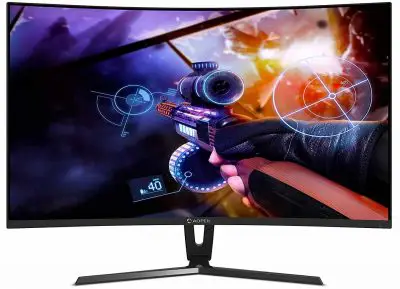
VA (Vertical Alignment)
Mainly found in high-end monitors, this technology is destined to have large contrast ratios, color accuracy, and viewing angles compared to TN technology, but has relatively less response time.
- Vertical Alignment LCD
- Best LCD contrast, deep blacks
- Great for media and immersion
- Slower pixels (possible ghosting)
- Mid-range price
- Better angles than TN
- Better contrast ratio than IPS
- Budget-friendly
- Offers better viewing angles and color accuracy than TN
- Viewing angles and color accuracy are not as good as IPS
- Can have issues with trailing and ghosting
IPS (In-Plane Switching)
This is the one that offers better viewing angles and color accuracy than TN and VA. This technology is mainly found in professional monitors because of the wider viewing angles and the ability to display better colors.
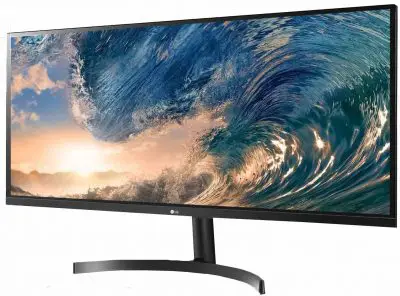
This is especially popular with graphic designers, artists, and photographers.
- In-Plane Switching LCD
- Best colour accuracy
- Wide viewing angles
- Great for creative + gaming
- Fast-IPS reaches ~1 ms
- Slightly pricier, mild IPS glow
- Color Reproduction is Good
- Better Viewing Angles
- Longer Lifespan
- Better Sunlight Visibility
- Expensive
- Higher Latency
- Power Consumption is Inefficient
Color Gamut
Color gamut in gaming monitors is basically the total number of colors a monitor can display. In simple terms, it is a specific range of colors perceptible to the human eye.
The more colors your gaming monitor can produce, the better it is. It will lead to vibrant, crispy, and more realistic game graphics. A monitor’s color production varies from brands to brands and color gamut help us identify those difference.
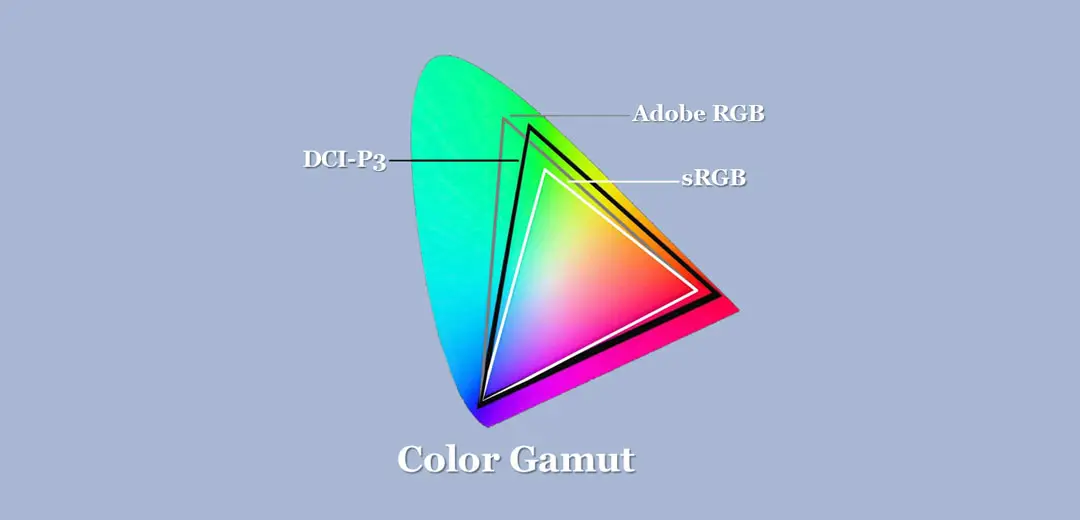
It also makes those differences clear and pacifies the colors used that are common between devices by color matching across devices that have different reproduction characteristics.
The more colors your gaming monitor can produce, the better it is.
It is generally denoted as a percentage of color space and shown in a triangular area enclosed by the color coordinates of the monitor’s green, blue and red colors.
Color gamut consists of three components hue, saturation, and brightness, and are mainly three types of color gamut
sRGB (Standard Red Green Blue)
It is technically, the smallest of the most widely available option. It is the most common gamut that can easily be found in modern electric devices.
It is popular for a reason its input and output experience very little lag time or inconsistency. These benefits lead sRGB to become the most popular color gamut as it currently is. Look for 100% sRGB in your monitor.
Adobe RGB (Red Green Blue)
Adobe RGB was first developed by Adobe in 1998. It is meant to offer a border color gamut and to depict color in a more realistic fashion.
If we compare this to sRGB, then Adobe RGB expended coverage in the cyan greenhouse.
DCI-P3
It was first opted by the society of Motion Pictures and Television Engineers to establish its own color standard. DCI P3 is merely a greater wider than its sRGB counterparts.
Now it has been becoming more popular in smartphones and all in one computer. It is generally found in iPhone X internal Cameras and plays a part in defining a display as HDR capable.
Brightness

Brightness is a measure of the amount of light emitted by the screen. It is basically the luminance and its unit is candelas per square meter (cd/m2) which is also called a “nit”.
Today’s latest monitors came with a brightness of about 300-350 cd/m2. Too much brightness is not perfect under any circumstances, as this is the cause of various eye problems such as tension and irritation, etc.
Higher brightness is suitable for playing games or watching videos. A brightness level of 200-250 cd/m2 is perfect for browsing and ordinary office work.
HDR or High Dynamic Range
HDR or High Dynamic Range is a color technology that allows monitors to have a fantastic contrast range between the brightest and the darkest parts of an image. Playing games and programs optimized for High Dynamic Range can look really impressive.
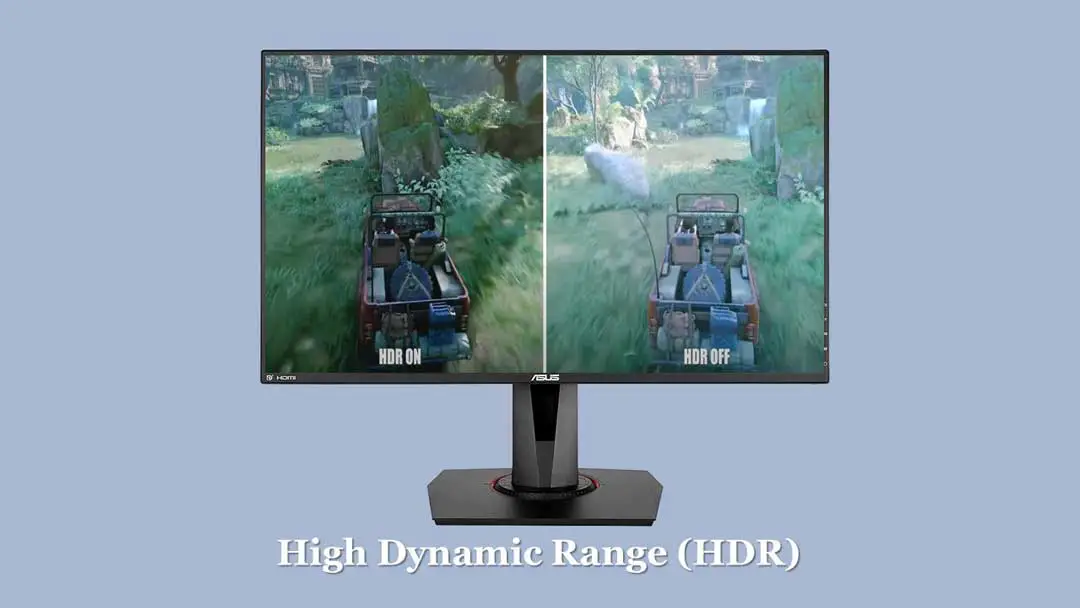
It offers a wider color gamut beyond the usual sRGB standard and represents color with great accuracy. It makes everything look a lot more realistic.
HDR is measured by the maximum brightness level of a monitor which is measured in “nits”, higher the better. Based on the displayHDR standard the monitors are of three types:
- DisplayHDR 400 (It gives you 400 nits of brightness and is baseline standard)
- DisplayHDR 600 (It offers 600 nits of brightness and is medium standard)
- DisplayHDR 1000 (It offers 1000 nits of brightness and is premium standard)
You can also find the monitors listed as HDR 10 that refers to the 10-bit color depth and have a varying degree of brightness. The best monitor is the one that offers 1000 nits of brightness and 10-bit color depth.
HDR is a great feature to consider if you want to achieve super-immersive gameplay and really lose yourself in the experience.
Console Gaming Monitors
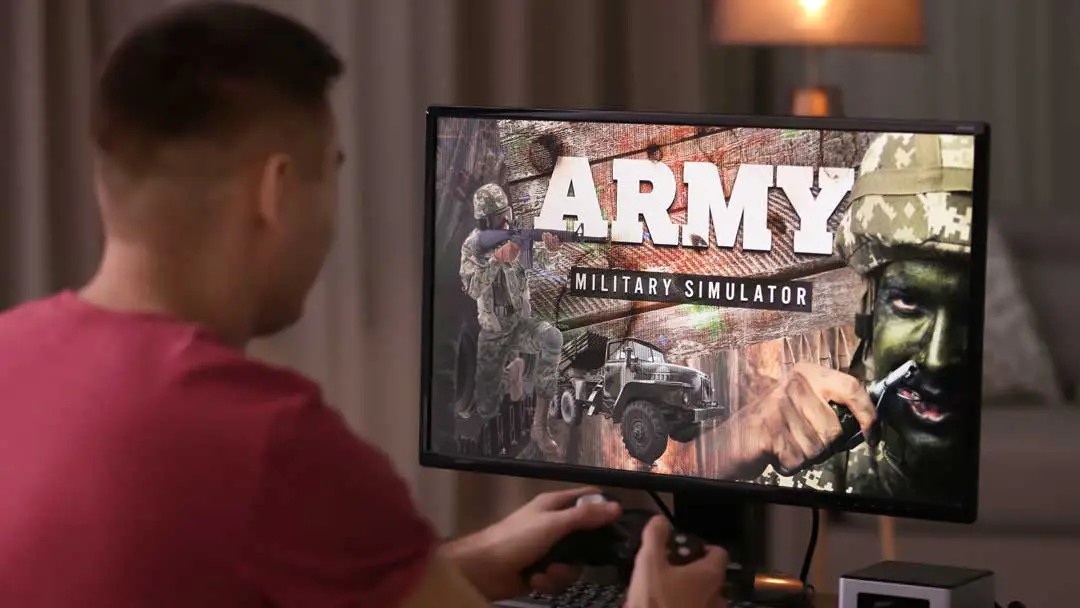
If you want a gaming display for your Console, your monitor choice will be limited because not all Console or games support all resolutions.
Suppose you have a base model of previous generations consoles such as a PS4, Xbox One, etc. in that case, resolution matters least because the games on these consoles have a maximum supported resolution of 1080p. So there is no point in going 60Hz+ refresh rate or above 1080p unless you are planning on using that monitor for PC gaming.
Not all gaming console support all resolutions.
But, if you have mid-generation gaming consoles such as Xbox One X, PS4 Pro, etc. or next generations consoles such as Xbox Series S, Xbox Series X, PlayStation 5, etc. and want to play 4K games or watch 4K content on them, you can opt for a 4K panel.
The Xbox consoles such as Xbox One S/X and Xbox Series S/X support 120Hz at 1080p, 1440p, and 4K UHD. But PS5 supports 120Hz only at 1080p and 4K UHD, not at 1440p.
However, not all 1440p 144Hz+ monitors support the ‘1440p 120Hz mode’ on the Xbox, forcing you to use either 1080p 120Hz or 1440p 60Hz.
Some 1080p 144Hz+ monitors might not support the ‘1080p 120Hz mode’ on the PS5, so you need to double-check this before buying a monitor for your PS5.
Ergonomic Flexibility
This factor is as important as the technical aspects of a monitor. You wouldn’t appreciate holding your new monitor on any surface to get a clearer picture without hurting your back.

Old monitors were limited in this regard and only allowed tilting a few degrees. The advanced versions allow you to adjust the height, tilt, turn left, and right to keep you comfortable in any position.
Port, Connection Type or Video Inputs
We all know that a PC monitor is more than a regular monitor. A gaming monitor must be equipped with a variety of video inputs or ports so that you can stay connected to multiple PCs, other devices and game consoles such as the PS4 and Xbox One or Macbook.
So you should consider the number and type of connection offered before making the final investment. Some of the latest connectors are HDMI, VGA, display port, DVI, and USB.
Dual HDMI ports are ideal because large consoles use HDMI, while some advanced graphics cards offer both DisplayPort and DVI connectivity.
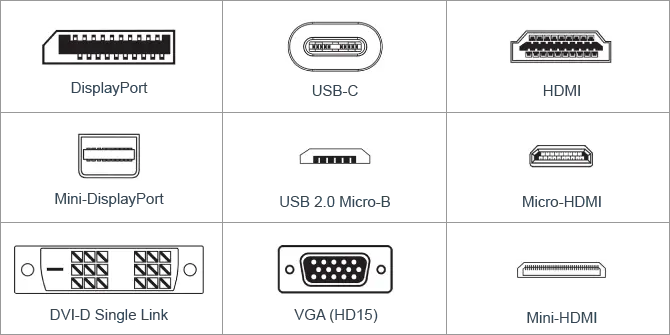
USB ports are also a nice feature as they make it easy to connect to game controllers, mice, thumb drives, and other external peripherals.
A powerful speaker system with a built-in subwoofer enhances your gaming experience and saves desk space, and a stand with height, tilt, and swivel base adjustments provides ergonomic comfort for all-night fragment marathons.
A modern gaming monitor has the following inputs and outputs and a brief overview of these ports are as follows
HDMI (High Definition Multimedia Interface)
This audio-video interface has been introduced on the monitors since 2003. It is perfect for playing high-definition content from your game console, computer, Blu-ray player, and similar other devices.
HDMI 1.4 / 2.0 – Does not support refresh rates as high in higher resolutions as DisplayPort, but just as achievable for mid-range solutions, it also transfers video and audio.
VGA (Video Graphic Array)
It is the oldest and most common analogue connector on board. It was first introduced in 1987. VGA has a high frame rate and resolution but does not provide sharp images like DVI.
It transmits analog signals, and due to this, there is a reduction in the final quality of the image.
DVI (Digital Video Interface)
The very first video interface to replace the VGA was introduced in 1999. They produce video signals similar to the HDMI but fails to carry audio signals.
It can carry a resolution of 1920 * 1200 and sometimes more. It displays a higher quality digital image.
Display Port
It is also one of the most common display interfaces and newest form of connection available that was introduced in 2008.
It transmits high-quality images and can also be used to carry audio and other forms of docs. It is the best choice for video/audio transmission on PC.
The minimum standard that your gaming monitor should support is DisplayPort 1.4a.
3.5mm Audio Out
Designed as a more convenient way to connect headphones or speakers directly to the monitor rather than the back panel of your motherboard or the front panel of the case.
Budget

If you’re new to gaming, you may find some of the features that enhance your gaming experience also reduce those numbers in your bank account. Yes, you can have the best features, but they come at a cost.
Some high-end monitors can cost up to $ 1,000, but it is possible to get a high-ԛuality monitor for a tenth of that price.
It all depends on what you want and what your budget is. If you’re more focused on FPS rather than a beautiful screen, your priorities can be different from someone who just wants their games to look beautiful.
- It also depends on the budget for the rest of your system;
- If you’re building a budget (somewhere between $ 300 and $ 500 in total): You probably shouldn’t spend more than $ 200 or less than $ 100.
- If you get a midrange build (anywhere from $ 600 to $ 800 in total): You shouldn’t spend less than $ 200 or more than $ 400.
- If you get a high-end build (anywhere from $ 1000 and up): You can really spend as much as you want, but you want to start at around $ 300-400.
Design and Mounting
The design of a good monitor should facilitate ease of use – something that can be especially important in more complex setups. Tilting and rotating tripods are important to get just the right monitor angle. Bonus points go to any brand that makes it easy to achieve with just one hand.
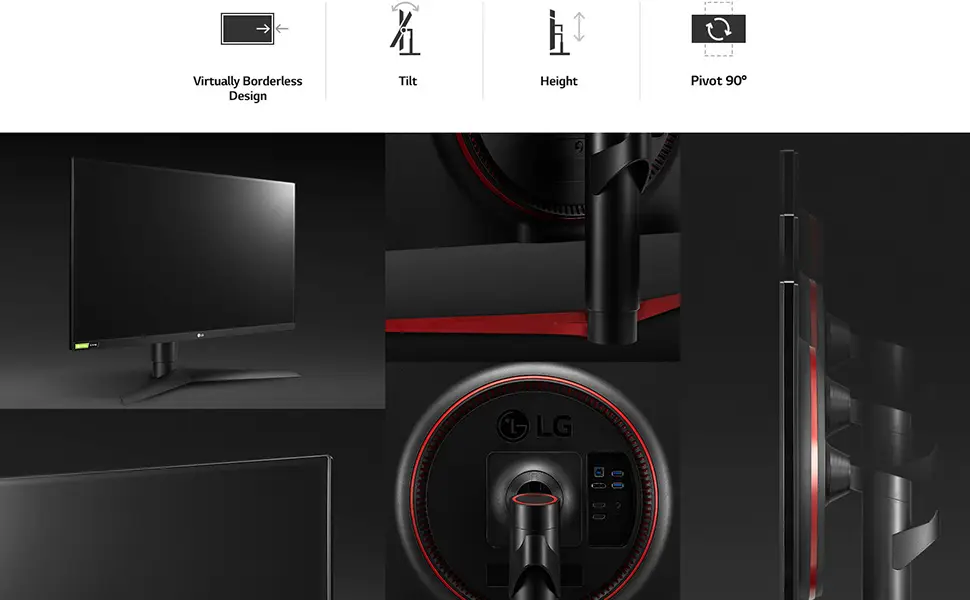
The built-in menu controls for monitor modes are also nice, but they should be easy to access and use. The ports should not be too difficult to manage, and cable guides or similar functions are useful for organizing.
Some monitors go the extra mile and include charging ports along the base or even turn the monitor base into a wireless charging pad for your phone.
View Angle
It may not be an important factor for the majority of users, as it didn’t affect casual office work. However, it plays an important role for users who like watching movies and series on computer monitors.
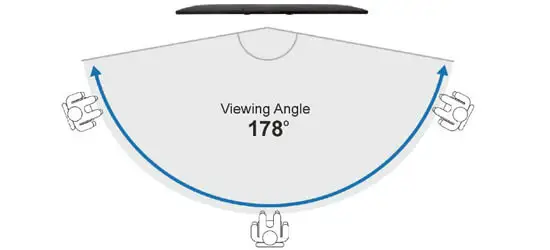
A monitor with a viewing angle of 170 degrees is a good choice because no one in the group has to compromise on image quality, regardless of their sitting position.
Do I Have To Buy One Or Two Screens
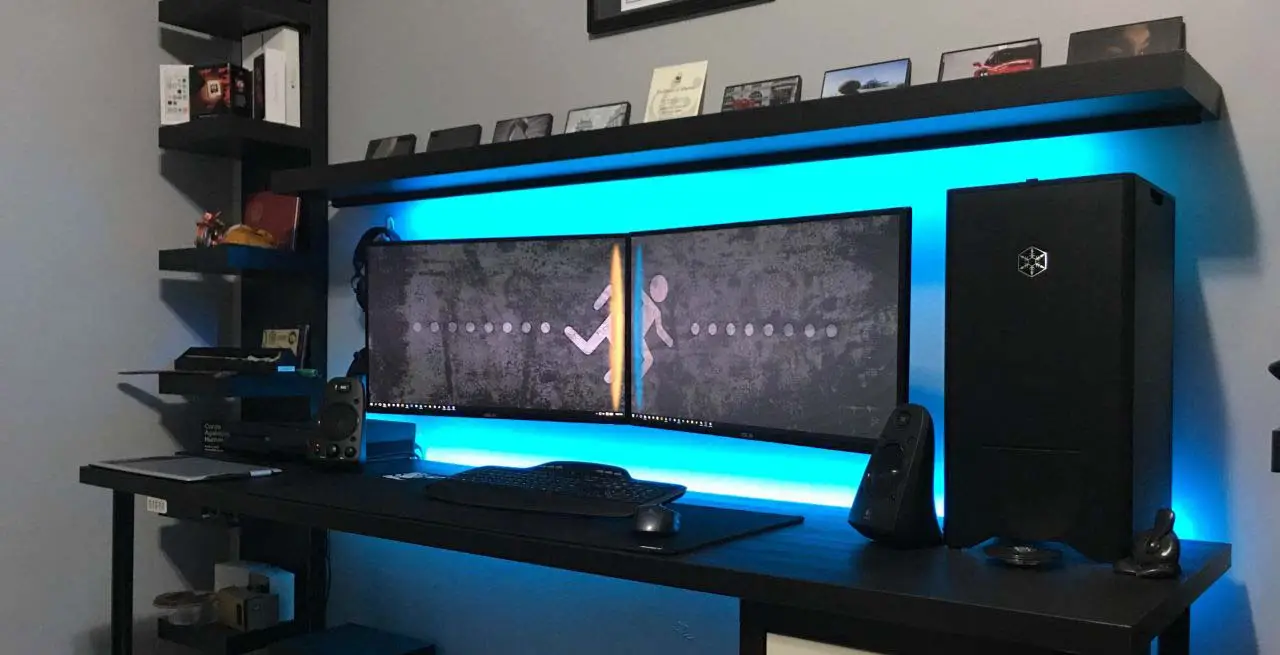
In general, gaming on two monitors is not worth it. You usually have all the action of the game at the center of your viewing window.
If this viewport is split between two monitors, the main part of your game is split in two with bezels from each monitor getting in the way. So, buy one monitor.
Our Recommendation
The monitor you choose depends on a variety of factors. Such as the type of gamer you are or the usage of monitor, your budget, and the type of hardware you have or more specifically your Graphics Processing Unit or Graphic card.
| Budget Conscious/ Very Casual Gamers | Casual Gamer | Serious Gamers | Competitive or Professional Gamers | |
| Size | 24″ or 27″ | 27″ | 27″ or 32″ | 27″ or 32″ or 34″ |
| Response time | <=5ms | <=3ms | 1ms | 0.5ms or 1ms |
| Refresh Rate | 60-75Hz | 120Hz or 144Hz | 165Hz or 240Hz | 240Mz or 360Mz |
| Resolution | 1080P | 1080P or 1440P | 1440P | 1440P or 1080P( depends on your GPU) |
| Adaptive Sync | Freesync | Freesync | G-SYNC | G-SYNC( if NVIDIA GPU) |
| Color Gamut | 96% sRGB | 98% sRGB | 100% sRGB | 125% sRGB |
| Panel Type | TN or VA Panel | VA Panel | IPS Panel | IPS Panel |
| HDR | DisplayHDR 400 | DisplayHDR 400 | DisplayHDR 600 or 1000 | DisplayHDR 1000 |
| Connection Type | DisplayPort or HDMI | DisplayPort | DisplayPort | DisplayPort |
Depending on these factors we have divided the choice of gaming monitors into four broad categories. We have also included the models that meet the criterion that we have already listed. Some criteria may be compromised due to the non-availability of certain models.
[amazon table=”12536″]
Final Verdict
The monitor is easily overlooked when you think about all the components going to a gaming PC, but it’s the part of the computer that you spend most of your time looking at. You deserve to have the right one for your needs.
I hope this guide helped you and you found everything you need to know about the gaming monitor – all the information in one place. You now know more about monitors than an average person.
Remember, buying a new monitor is a worthy investment. Keep all of the above factors in mind and you can rest assured that you will make a smart purchase.
Knowing what to look for with a gaming monitor can seem stressful, and we hope this guide eased the burden. With a good budget, and the knowledge of what you need and how to find it, you can open a portal to all your game dreams.
We highly recommend that you also go through our 10 best gaming monitors under $400 or Rs 30000 where we have listed and described a wide range of the best gaming monitors.
If you feel that we have overlooked anything or made any mistakes in the article, feel free to let us know in the comments section below, and we’ll update the article as soon as possible!
Good luck, gamers!







[…] start with our guides on how to choose headphones, the AC buying guide, choosing a washing machine, what to look for in a gaming monitor and choosing a gaming […]